
Checkup 1.0.7 · User guide
Create and manage workflows
Reviewed
Define a repeatable set of checks and actions, then assign it to a station.
What a workflow controls
A workflow selects the information and operations used during processing: Device Info, Instant Diagnostics, App Diagnostics, IMEI Checks, Grading, Device Pictures, Data Erasure, and Station Actions.
Use different workflows for different jobs, such as intake inspection and preparation for resale. A station can also operate with No workflow assigned.
1. Create the workflow
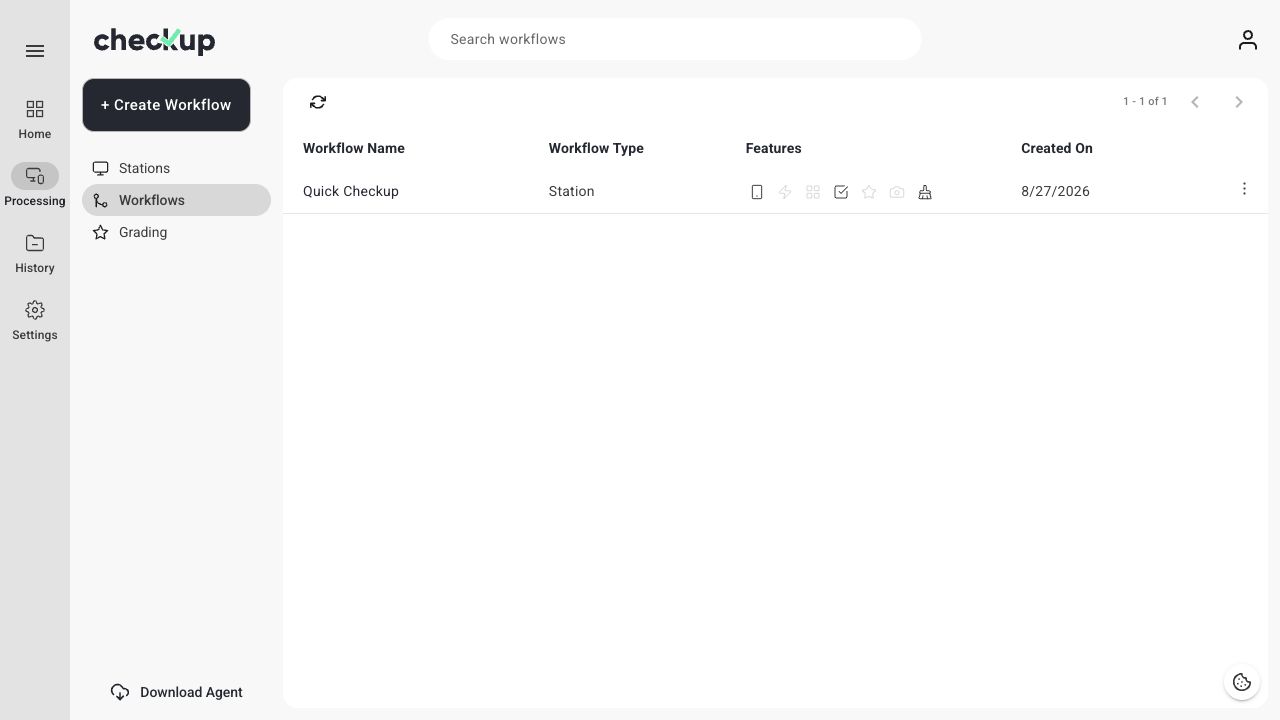
- Open Processing → Workflows.
- Choose + Create Workflow.
- Enter a clear, unique Workflow Name.
- Review every section before saving. New workflows can start with options already selected, including automatic actions.
2. Choose information and diagnostics
Select a section name to see its options. Its checkbox controls whether that section is enabled. Within a section, select individual fields or use Select all / Deselect all where available.
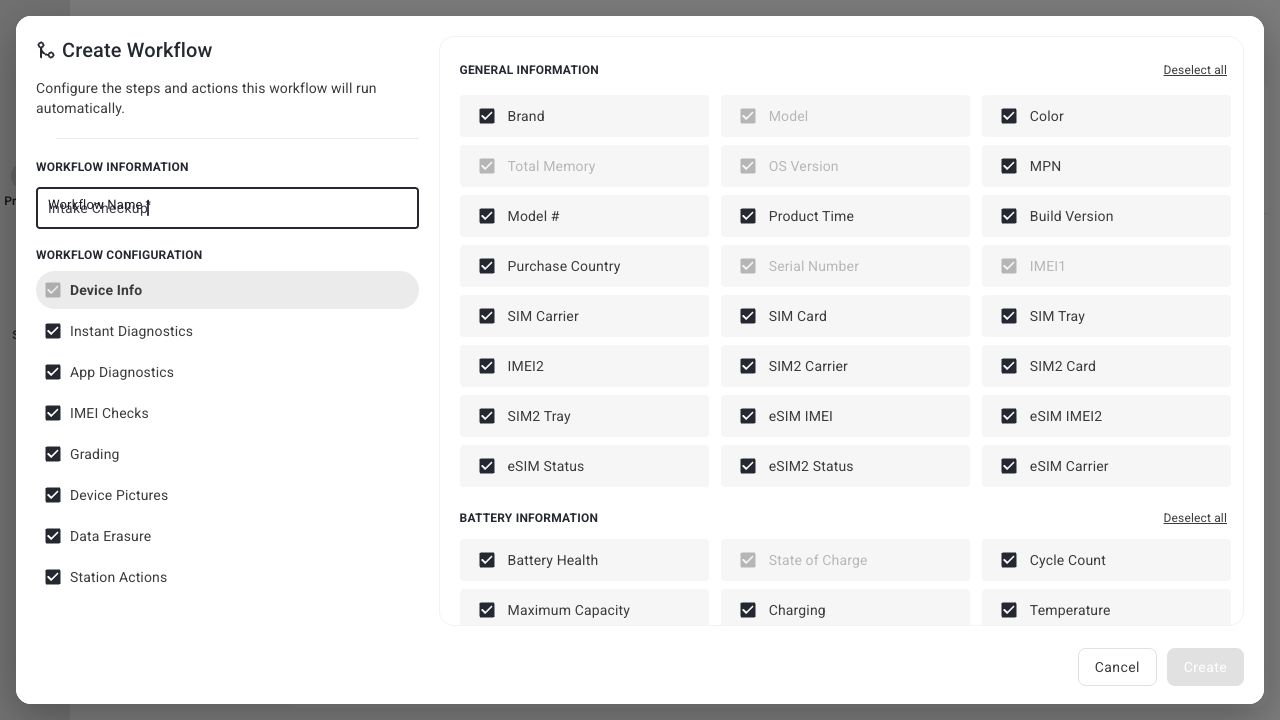
Core identification fields remain selected, including Model, Total Memory, OS Version, Serial Number, IMEI1, and State of Charge. These fixed fields cannot be removed through the workflow editor.
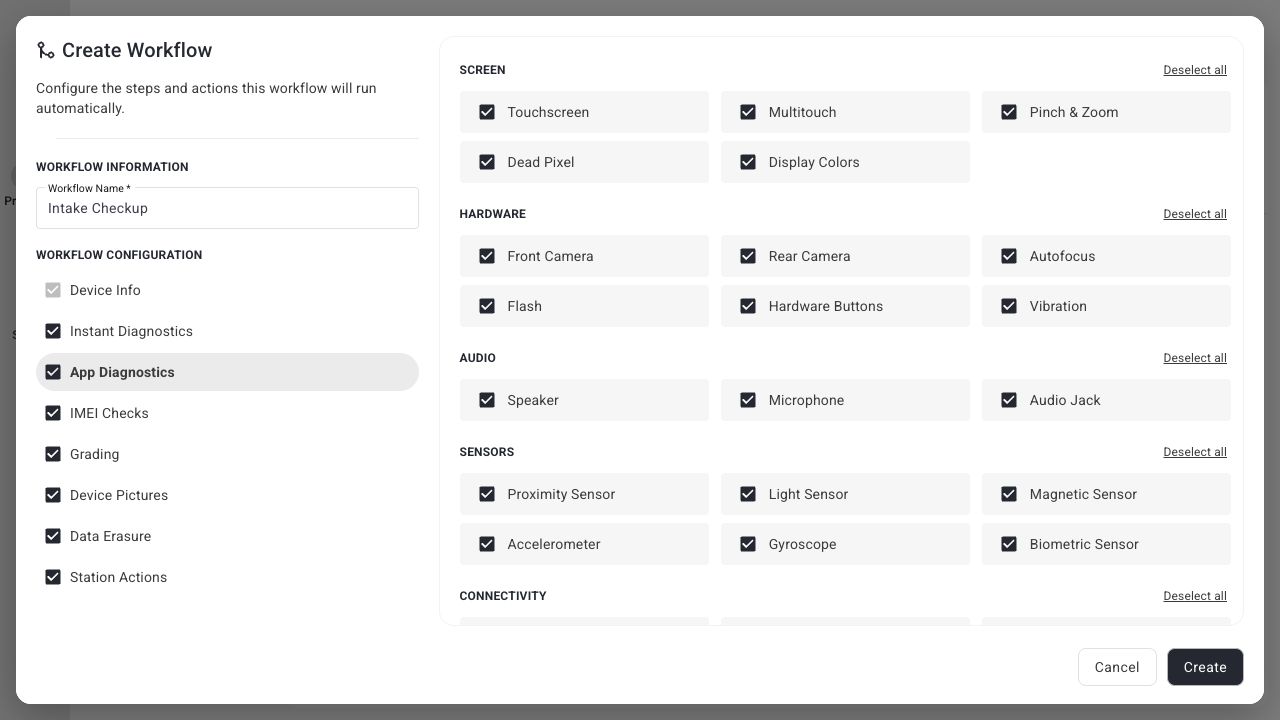
For App Diagnostics, review each group: Screen, Hardware, Audio, Sensors, and Connectivity. Select the checks your team should complete. Turning a module back on can select all of its available options, so review the individual choices afterward.
3. Configure grading and pictures
Open Grading and select the grading profile your operators should use. Create the profile in Processing → Grading if it does not exist yet.
Open Device Pictures and choose a target from one to four pictures. Use a consistent team convention, such as front, back, and any visible damage.
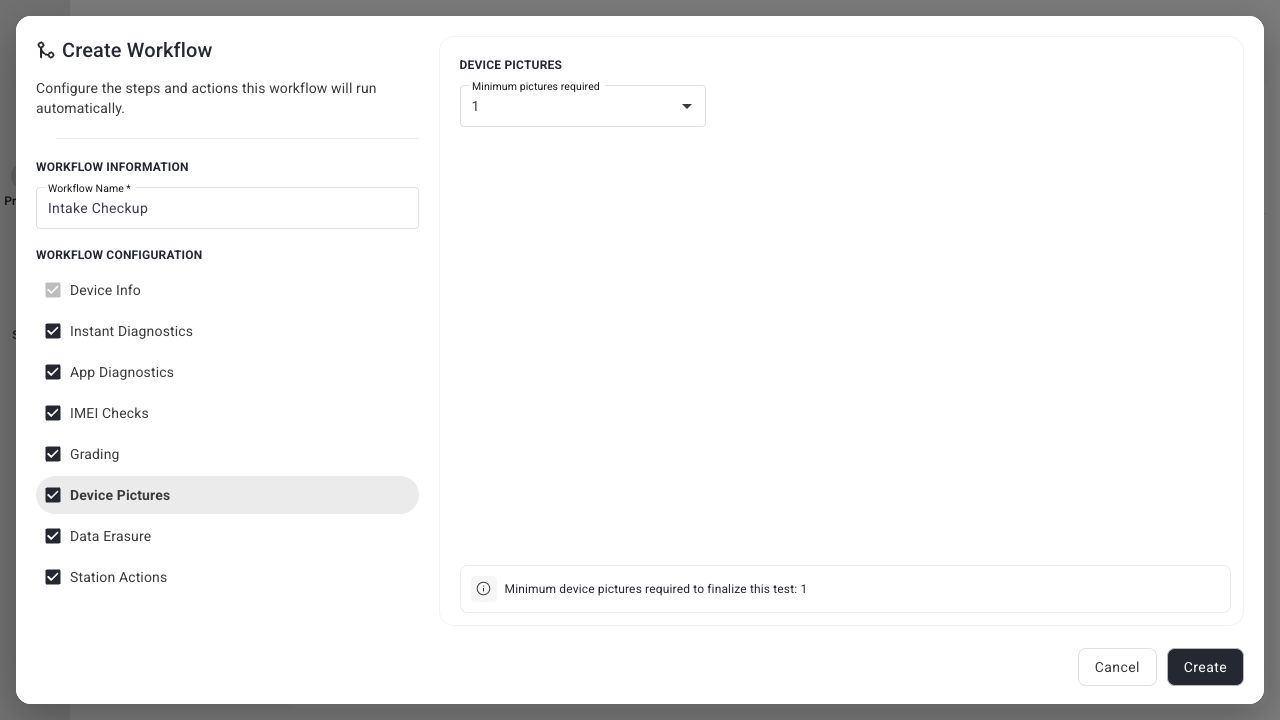
In 1.0.7, the configured picture minimum is displayed as a progress target. Do not rely on it to prevent every early finalization. Have operators check the pictures before ending the test.
4. Review automatic erasure
Basic Data Erasure can run automatically when selected in the workflow. Read the warning before enabling it: erasure starts after the other selected workflow steps are complete. If erasure is the only selected processing operation, it can start when the device is connected.
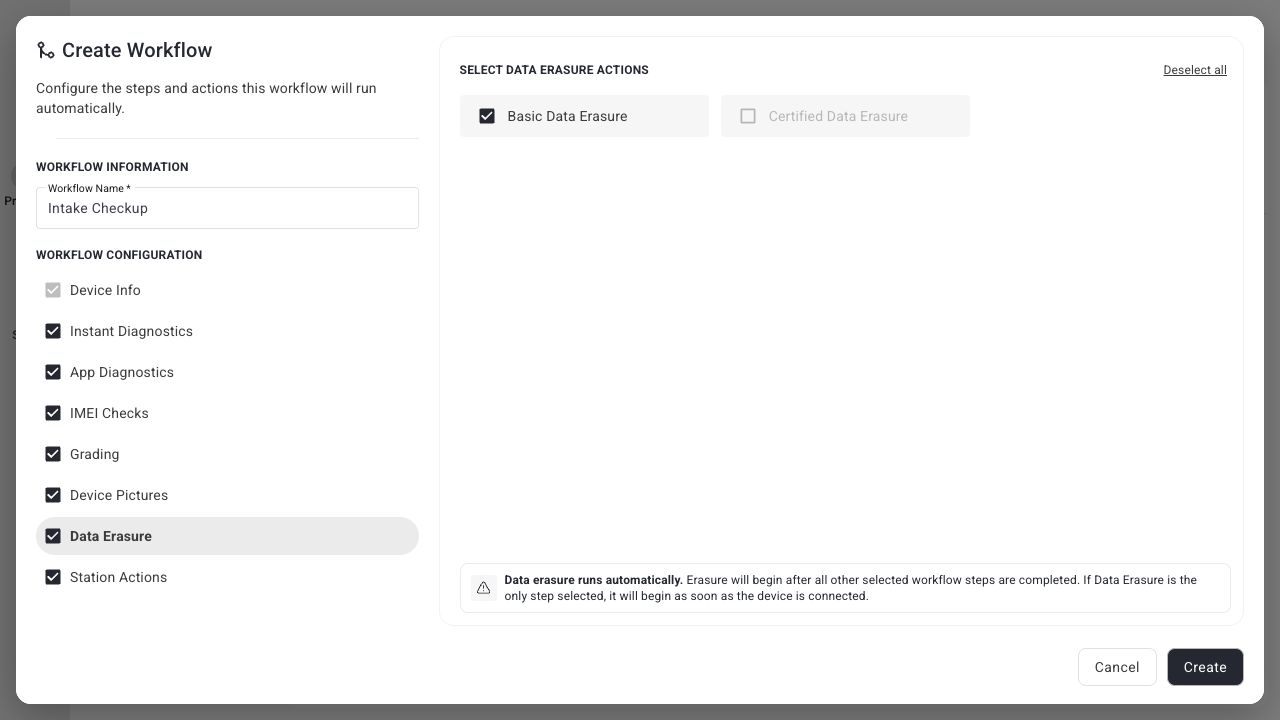
Leave it off for workflows that only inspect devices. Basic Data Erasure removes user data and settings and does not produce an erasure certificate. Certified Data Erasure is unavailable in this release.
5. Review Station Actions
Open Station Actions and review:
- Automatic activation for iOS devices for eligible devices in their initial setup state.
- Automatic app installation when the device is ready for it.
- Uninstall app automatically when the device is ejected.
- Automatic label printing when the device is ejected; configure the label printer in Agent first.
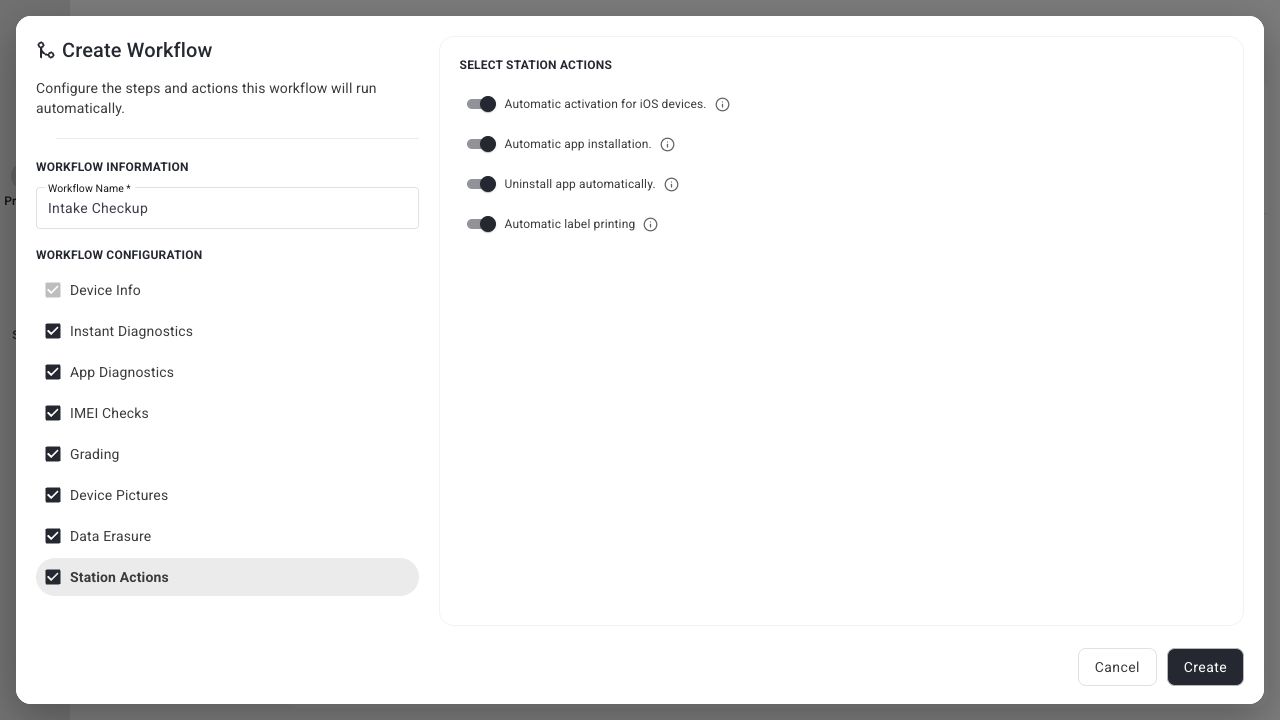
App-related actions depend on App Diagnostics being enabled. Hardware, device readiness, and Agent availability also affect whether an action can run.
6. Save and assign it
Choose Create. Then open Processing → Stations → three-dot menu → Edit, choose the workflow, and Save.
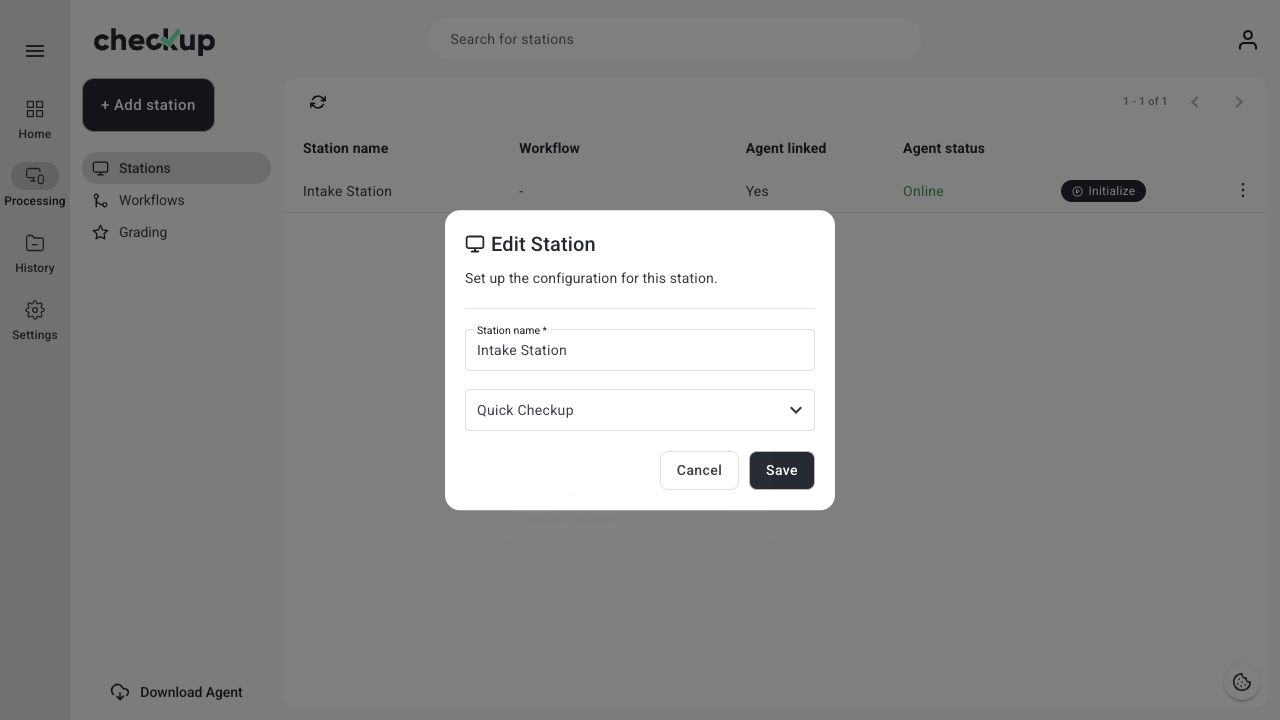
Initialize a new station session to use the configuration. An already active session keeps the workflow settings it started with.
Edit or retire a workflow
Use the workflow row menu to open its available actions. After editing, save your changes and begin a new station session before expecting them to apply. Historical test results keep the configuration used for those tests.
Archiving a workflow removes its assignment from stations. Check the affected stations and assign a replacement if you want them to continue with a standard workflow.
Screens show the Checkup interface with sample data. Names and results in your workspace will differ.