
Checkup 1.0.7 · User guide
Download the Checkup mobile app
Reviewed
Install the mobile app used for supported guided diagnostics on a device.
Choose your platform
Use the App Store button on this page for iPhone or the Google Play button for Android. Open the store listing on the device you intend to test and follow its installation instructions.
The mobile app and the desktop Agent have different roles: the mobile app runs supported guided tests on the phone; Agent connects the processing computer to Checkup.
Start a guided diagnostic session
- Open an initialized station in the Checkup dashboard.
- Connect and prepare the device using the processing screen’s instructions.
- Open the device’s card.
- Install or open the Checkup mobile app as directed.
- Complete the tests presented on the phone.
- Review their results under APP DIAGNOSTICS in the dashboard.
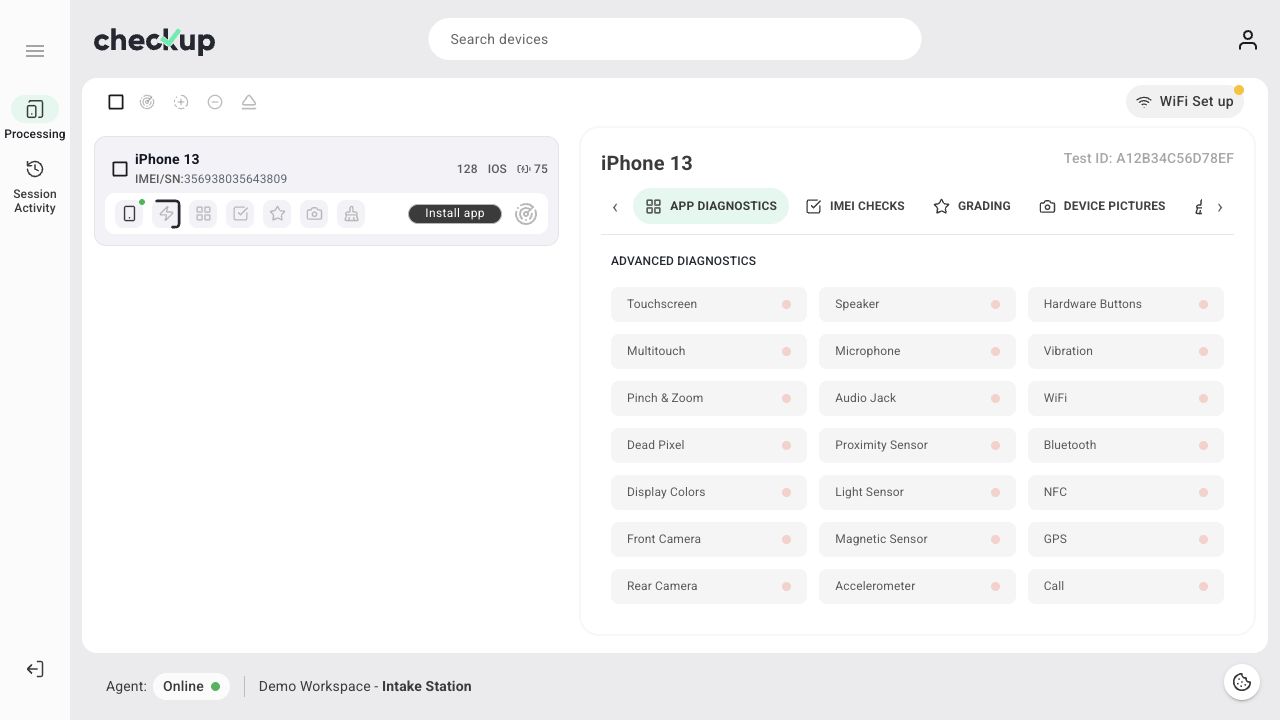
The screenshot shows where results are reviewed in the web dashboard. Available tests depend on the device and the station’s selected workflow.
Automatic installation
A workflow can include Automatic app installation. Where that action is supported and its prerequisites are met, Checkup can request installation during processing. For manual control, use Install app on the connected device’s card.
See Run app diagnostics and Create and manage workflows.
If results do not appear
Check that you are viewing the correct device and Test ID, the station’s Agent is online, and the mobile tests have been completed. An unrun test is not a passed test. Follow any permission prompts on the phone needed for the selected checks.
Screens show the Checkup interface with sample data. Names and results in your workspace will differ.