
Checkup 1.0.7 · User guide
Review device information and instant diagnostics
Reviewed
Inspect the connected device’s information and complete its available quick checks.
Open the device
Initialize a station, connect the device, and select its card. Confirm the device name and Test ID before reviewing results. The station workflow controls which information and checks are selected; the device determines what it can report.
Review Device Info
Open DEVICE INFO. Review the available sections:
- General Information: identification, storage, operating-system, and SIM-related information where reported.
- Battery Information: battery health, state of charge, cycle count, and other available readings.
- Account Lock Information: reported account-lock and management indicators.
- Parts Verification: available component information.
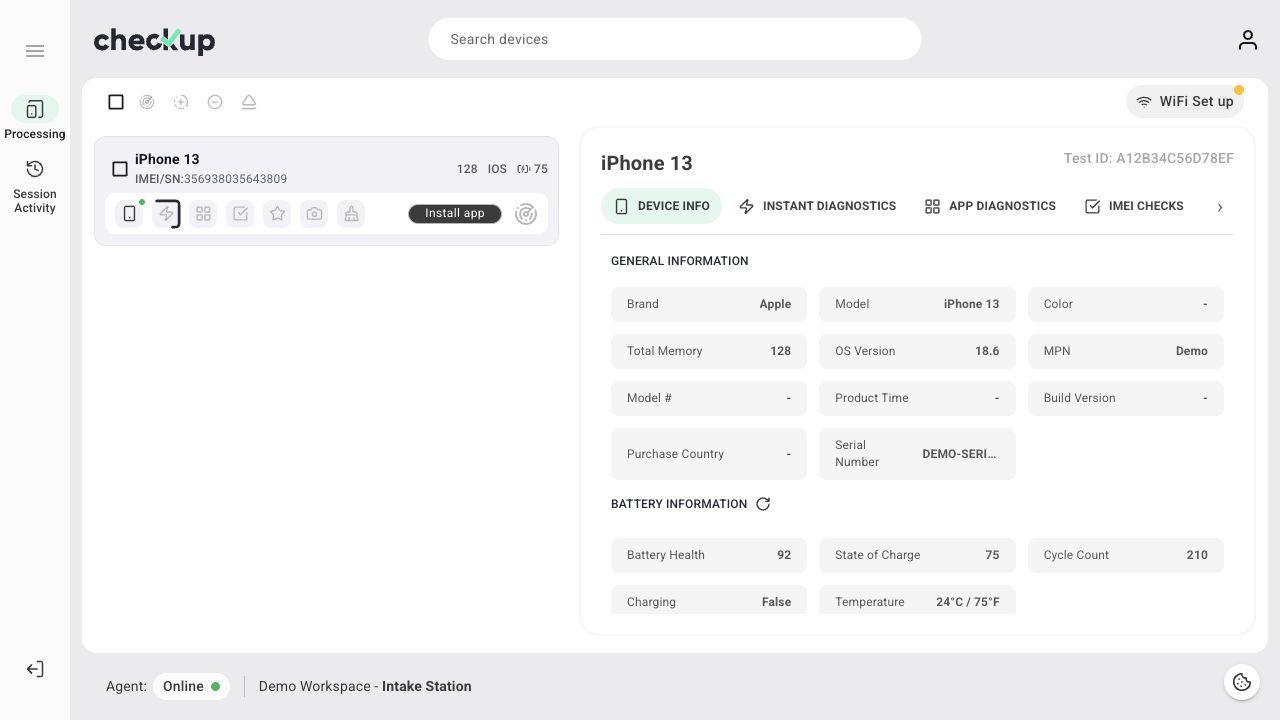
State of Charge describes the battery’s current charge level; Battery Health describes its reported condition. Cycle Count and Maximum Capacity are separate measurements. A dash or unavailable field does not mean a measured zero or a clear result.
For a manually added record, enter information you have actually verified. See Process devices and enter information manually.
Review Instant Diagnostics
- Open INSTANT DIAGNOSTICS.
- Review the available INTERNAL DIAGNOSTICS results.
- Complete the actions required by INTERACTIVE DIAGNOSTICS on the device.
- Watch for the result of each required check before finishing.
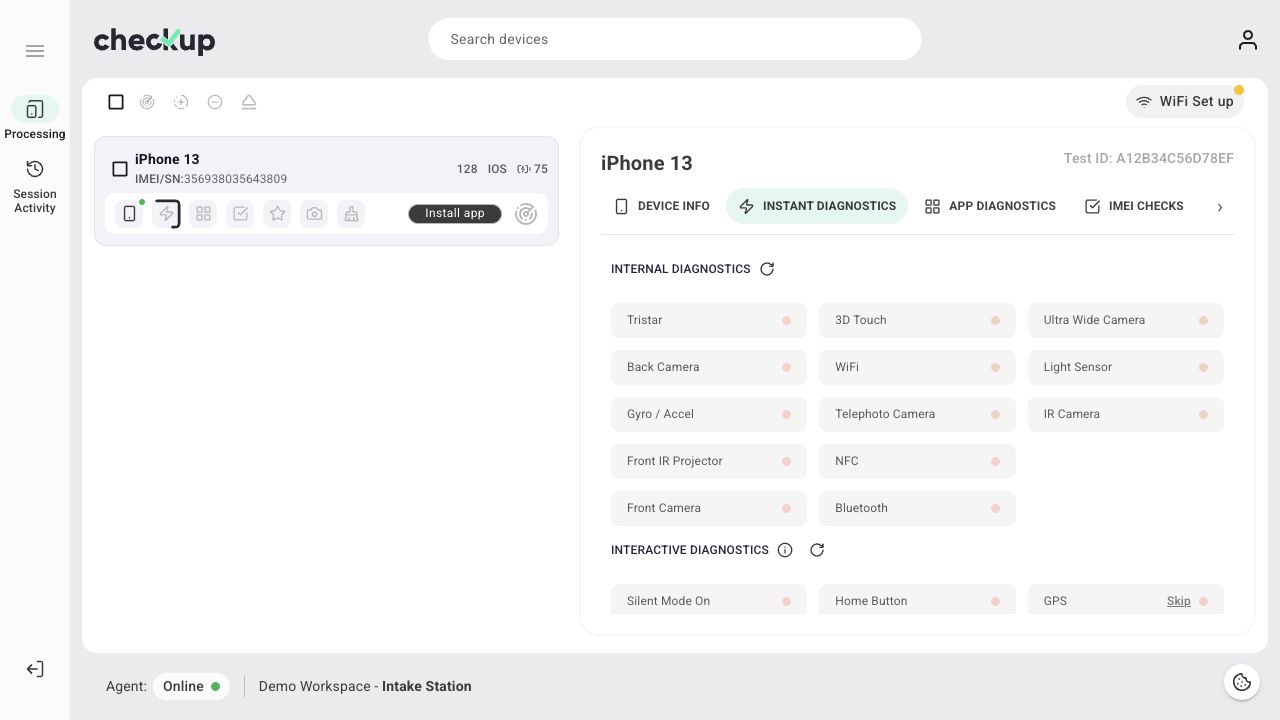
The screen may include checks for buttons, sensors, connectivity, or other device components. The precise list varies with device support and workflow selections. Follow the device and dashboard instructions for the checks that apply.
Incomplete interactive tests can be considered failed when the test is finished. If a supported Skip control is used, review the resulting status; skipping is not a passing result.
Distinguish instant checks from app checks
INSTANT DIAGNOSTICS and APP DIAGNOSTICS are separate result groups. Completing quick checks does not mean the guided mobile-app checks have been completed. Use Run app diagnostics for the latter.
Finish and review
Check the results, complete any required grading and pictures, then finish the device according to your process. Open its Test ID in History to review the saved record or download a report.
If information does not update, confirm the correct device, its connection, and the station’s Agent status before retrying the available refresh controls.
Screens show the Checkup interface with sample data. Names and results in your workspace will differ.