
Checkup 1.0.7 · User guide
Run app diagnostics
Reviewed
Complete supported tests in the Checkup mobile app and review the results in the dashboard.
Prepare the station and device
Initialize a station with an online Agent, connect the device, and open its card. If you use a workflow, confirm that App Diagnostics is enabled and includes the checks your team needs.
Choose the tests in a workflow
In Processing → Workflows, open the workflow and select App Diagnostics. Its options are grouped into Screen, Hardware, Audio, Sensors, and Connectivity.
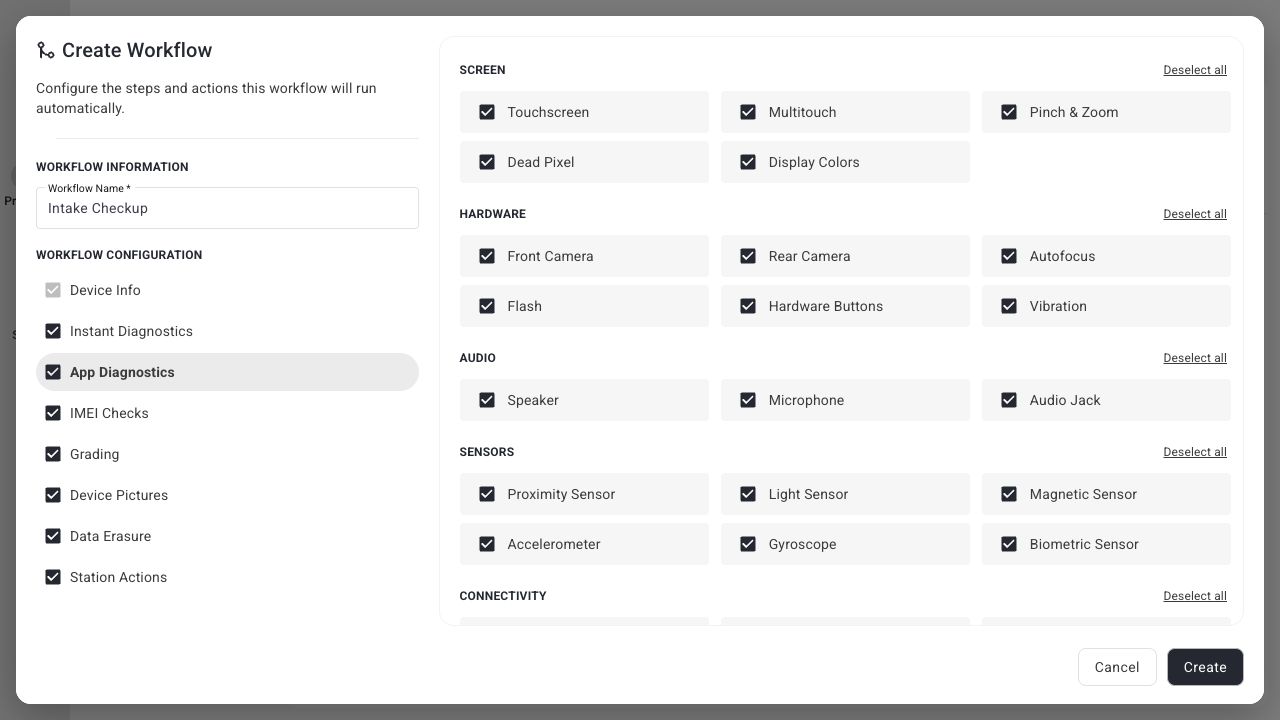
Select the appropriate tests and save. Assign the workflow to the station and start a new station session to use changes. Availability can vary by device.
Install or open the mobile app
Use the device card’s Install app action where available, or the mobile app download page. A workflow may also request automatic installation when enabled and the device is ready.
Open the app on the device and follow the instructions for the selected checks. Allow the device permissions needed for those checks when prompted.
Complete and review the tests
- Complete each instruction on the phone, such as a screen interaction, camera check, or audio check.
- Return to the device card in the dashboard.
- Open APP DIAGNOSTICS.
- Review the result of each relevant test.
- Resolve incomplete checks before finishing the device.
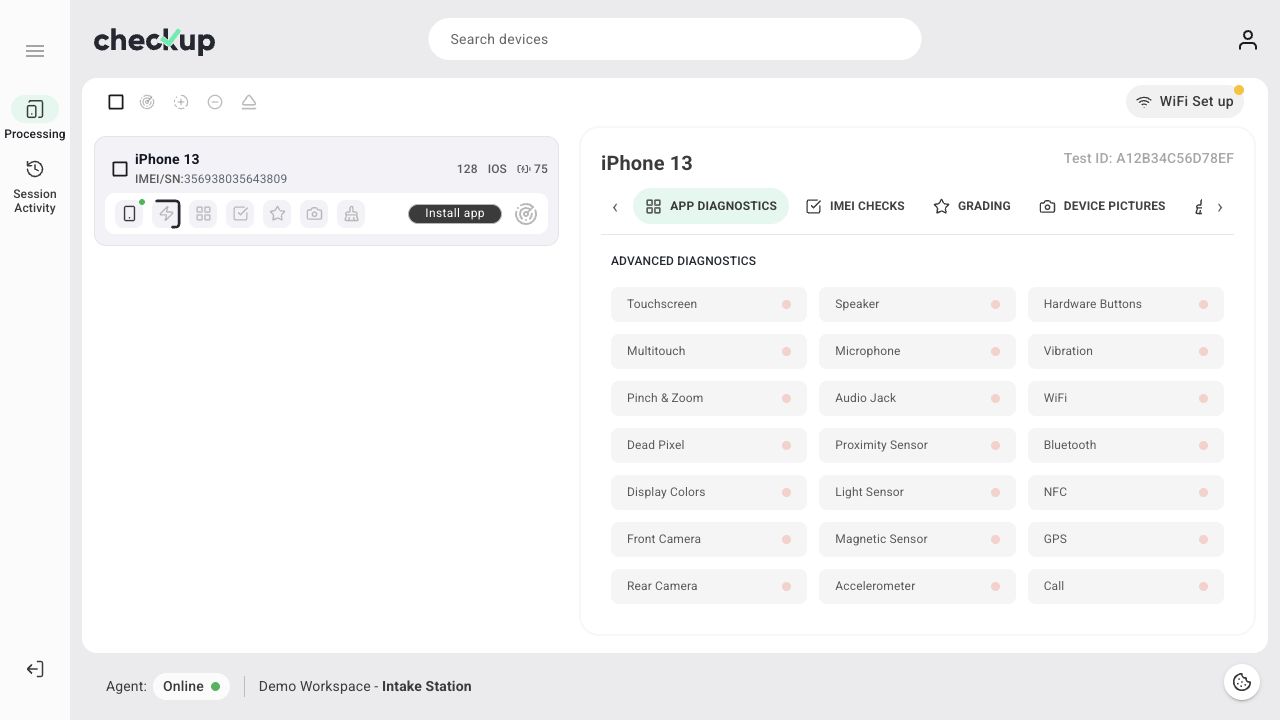
An unrun, skipped, or unavailable test should not be read as a pass. Check the individual results instead of relying only on the presence of the App Diagnostics section.
If results do not update
Verify the device and Test ID, keep Agent running, and check that the mobile app is open on the expected device. Follow the permissions and connection prompts displayed by the device. Review your workflow if an expected test is missing.
After testing
Review the final results before Eject. If Uninstall app automatically is enabled in the workflow, removal is requested when the device is ejected. Reports and historical records keep the recorded results for later review.
Screens show the Checkup interface with sample data. Names and results in your workspace will differ.