
Checkup 1.0.7 · User guide
Review History and print labels
Reviewed
Find a device test, inspect its results, download outputs, and reprint labels from a station session.
History and Session Activity
History shows device processing records across the selected workspace’s stations. Session Activity shows records for the current station session.
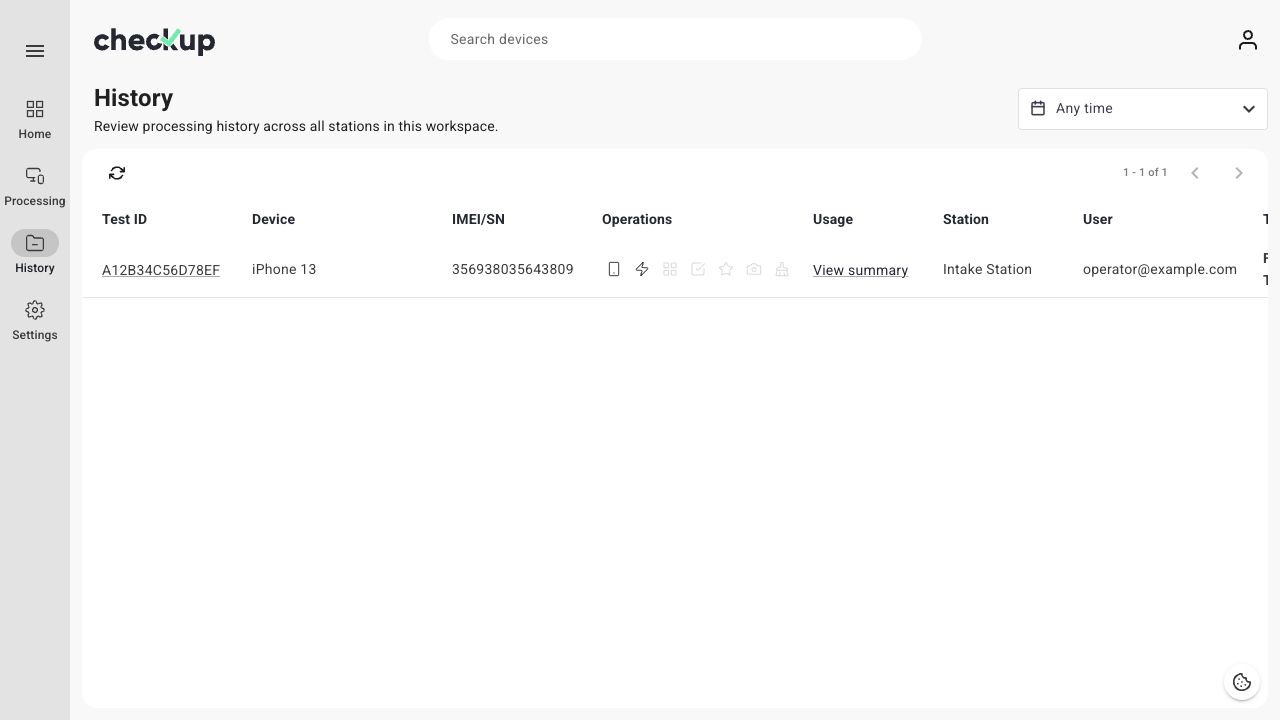
Find the correct test
- Open History.
- Use Search devices to narrow the list.
- Adjust the date-range selector if needed.
- Review the device, IMEI/SN, station, operator, and processing date.
- Select the Test ID to open the detail view.
A phone may have more than one test record. Use the Test ID and date to identify the specific processing attempt you need.
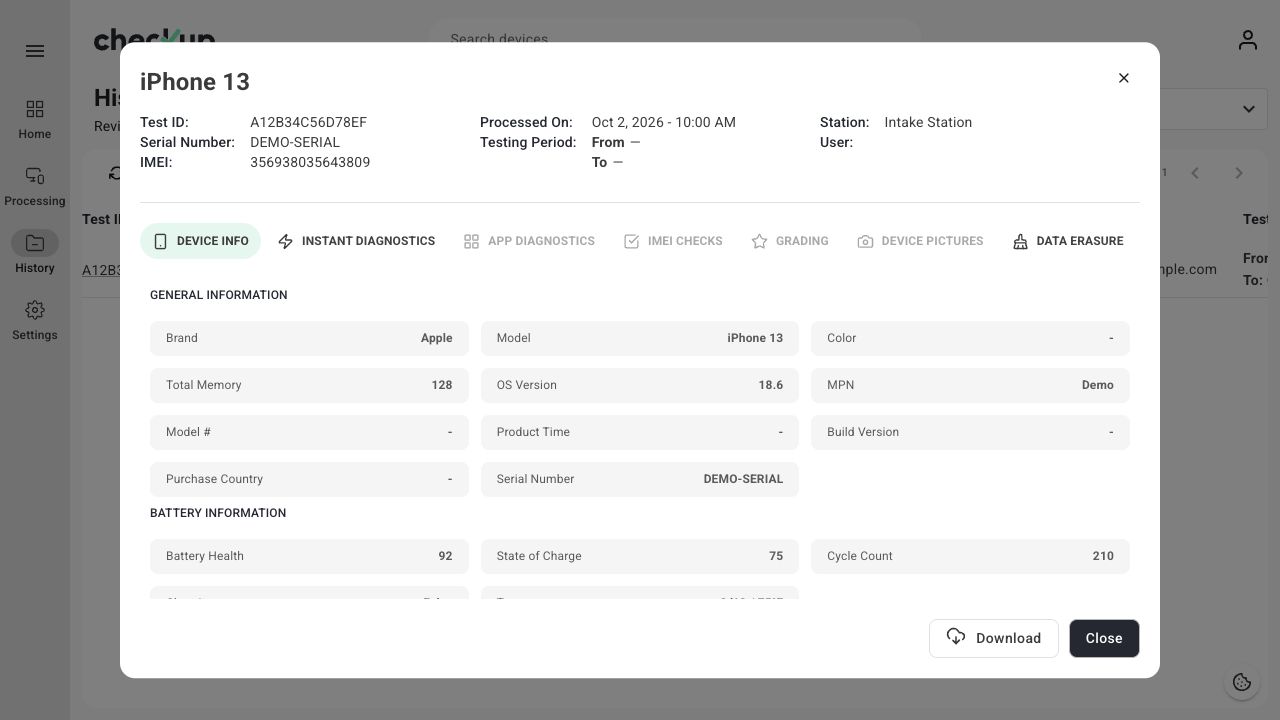
Dates and times follow your profile preferences. Update My Profile if the timezone is not the one you expect.
Inspect the results
Use the available tabs to review device information, diagnostics, IMEI checks, grading, pictures, and erasure. Sections depend on the recorded data and the configuration used for the test.
A NOT TESTED result means the check was not completed. Missing values are not measured zeros. Saved picture evidence is available under DEVICE PICTURES for tests with pictures.
Download a report or label
Open the record’s three-dot menu:
- Choose Download PDF Report for the Device Test report.
- Choose Download label for the device label file.
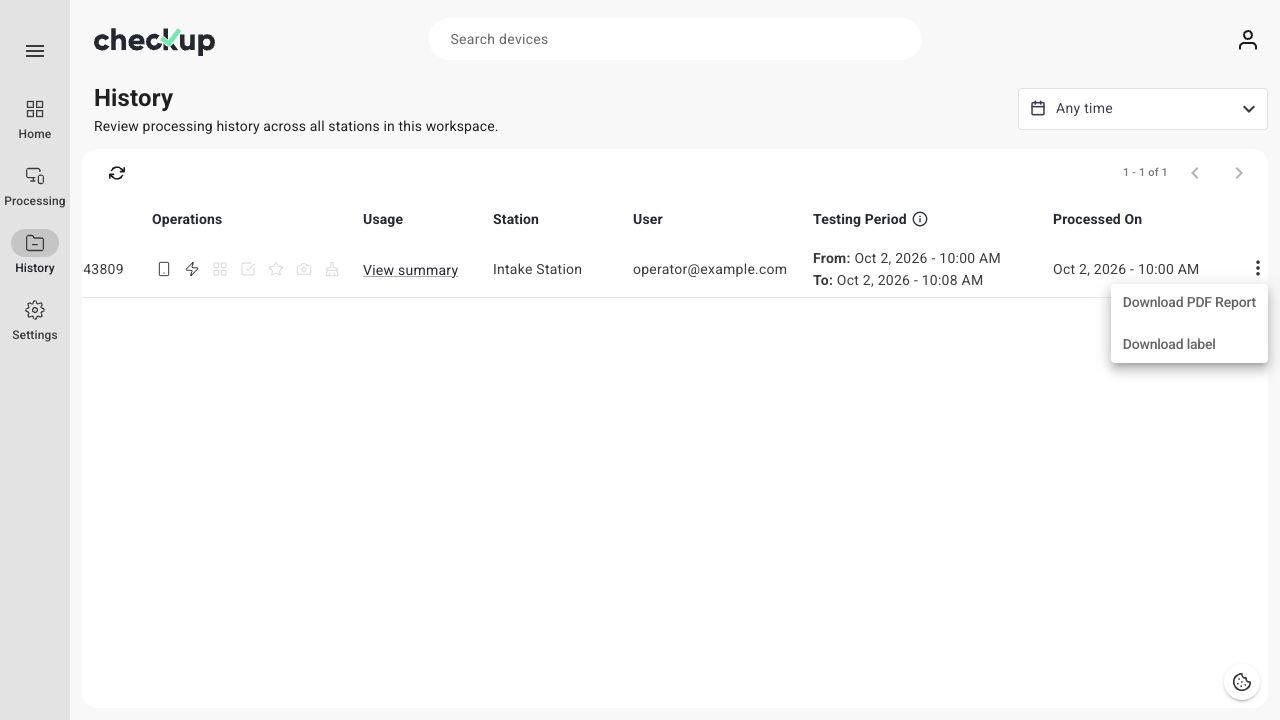
Configure report language, page size, and filenames in Export settings.
Print a label from Session Activity
- Open the appropriate station session.
- Choose Session Activity.
- Find the test in the list.
- Choose the row’s Print Label button when available.
- Check the connected printer for the output.
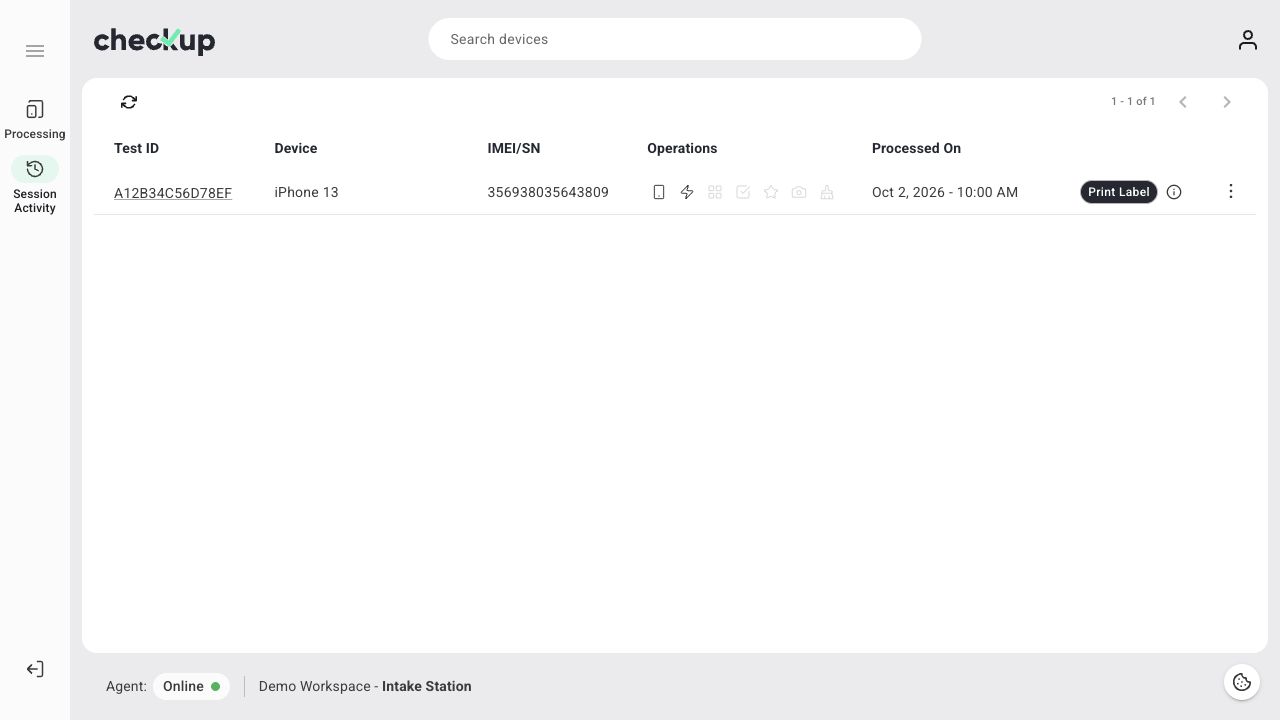
Physical printing requires the station’s Agent to be online and its label printer to be configured. Downloading a label file does not send it to the printer. If the print action is unavailable, check session mode, Agent availability, and printer setup.
A workflow can also request automatic label printing when a device is ejected. Review Station Actions in Workflows before relying on this behavior.
If records do not load
Use the retry option or Reload after checking the connection. Confirm the selected workspace, date range, and search text before concluding that a record is missing. Wait for the current request to finish before reviewing results after changing workspaces or searches.
Screens show the Checkup interface with sample data. Names and results in your workspace will differ.