
Checkup 1.0.7 · User guide
Run IMEI checks
Reviewed
Review blacklist and supported carrier-lock information for a device with an IMEI.
Before you begin
Open the device’s card in an initialized station and confirm that it has the correct IMEI. A missing IMEI or an unsupported device can leave the relevant check unavailable. Available checks also depend on the workspace’s features, credits, and selected workflow.
Run checks from the device
- Open IMEI CHECKS in the device detail panel.
- Review the IMEI before requesting a check.
- Select Blacklist Status, Carrier Lock Status, or both when available.
- Choose Run.
- Wait for the result to finish loading.
- Review the returned status before completing the device.
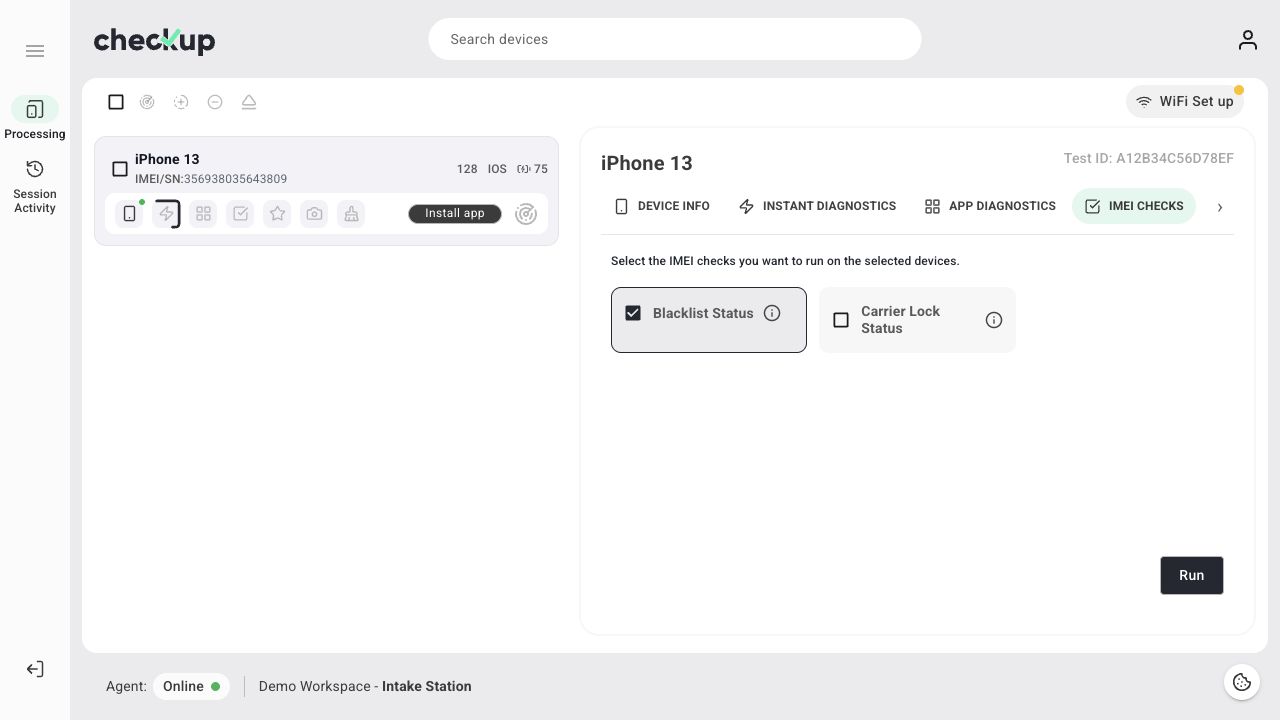
Carrier Lock checking in this release applies to supported Apple devices. Blacklist and carrier-lock results describe different things; a result from one does not substitute for the other.
Run checks through a workflow
Open Processing → Workflows and configure IMEI Checks. Enable the supported checks you want the workflow to request, save it, and assign it to a station. Start a new station session after changing the configuration.
Automatic checking runs Blacklist before the supported Apple Carrier Lock check. It uses the workspace’s existing monthly credit allowance. If credits are unavailable or a request fails, review the displayed state rather than assuming the check passed.
Interpret results carefully
A completed status, a missing result, and a request error are different outcomes. NOT TESTED or no returned result does not mean clear or unlocked. Check the IMEI and the specific response recorded for the test.
Review the result later
Open the test in History or Session Activity and review its IMEI results. Use the Test ID to distinguish multiple checks or processing attempts for the same device.
Troubleshooting
- Tab or action unavailable: confirm the IMEI, device support, workflow selection, and workspace access.
- Credit limit reached: review the available allowance in Settings → Plan & Agents.
- Failed request: check connectivity, read the error, and retry only after confirming the device and IMEI.
Screens show the Checkup interface with sample data. Names and results in your workspace will differ.