
Checkup 1.0.7 · User guide
Create and use grading profiles
Reviewed
Define the grades your team uses and select the right profile for processing.
Open grading profiles
Choose Processing → Grading. The list shows available profiles and marks the current default with a Default badge.
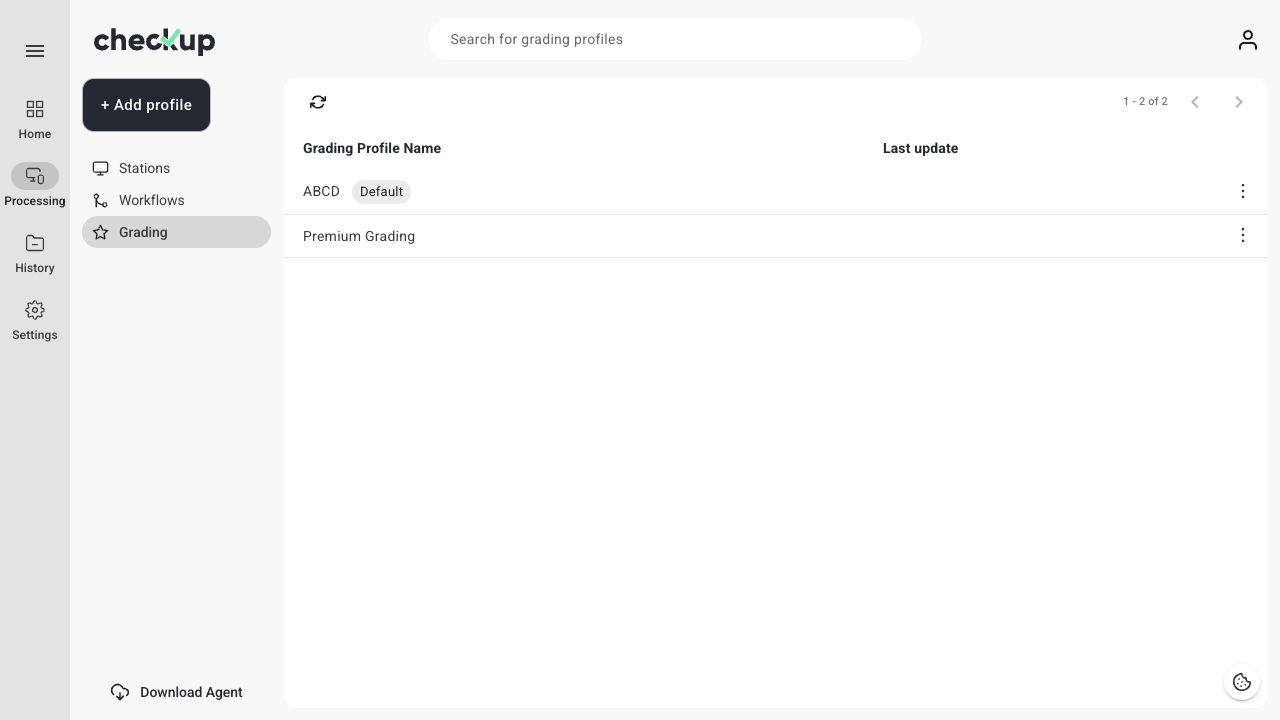
The default is used for stations without an assigned workflow and is preselected when configuring grading in a workflow.
Create a profile
- Choose + Add profile.
- Enter a unique Grading Profile Name.
- Add grades under Overall condition.
- Type a grade in Enter new grade name… and press Enter to add it.
- Add another section in Enter new section name… if you want separate condition categories, then add its grades.
- Review the wording and choose Save.
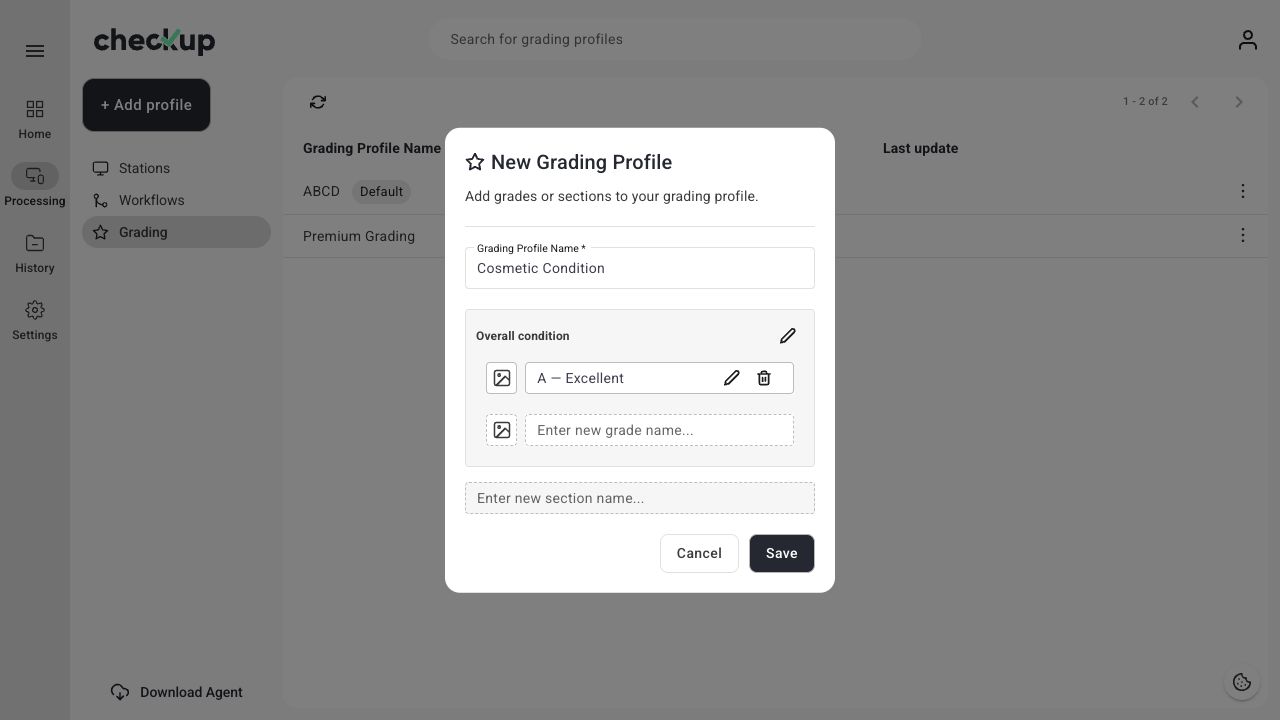
Use labels your team can apply consistently. For example, define what qualifies as excellent, good, or damaged in your own operating procedure; a grade name alone does not explain your inspection standard.
Choose the profile in a workflow
Open Processing → Workflows, create or edit the workflow, enable Grading, and select the intended profile. Save the workflow, assign it to a station, and initialize a new session.
See Create and manage workflows for the assignment steps.
Grade a device
Open the device card in the processing session and choose GRADING. Review the available sections and select the appropriate grades based on your inspection. Check that the result is saved before completing the device.
Use Device Pictures alongside grading when a visual record will help explain the condition.
Change the default
Use the profile row menu to set a different profile as the default. Confirm that the Default badge moves to the intended profile. Changing the default does not rewrite existing historical grades.
Retire a profile
The current default cannot be deleted until you choose a different default. If a profile is used by workflows, follow the replacement selection offered when retiring it so those workflows have an appropriate grading profile.
Active sessions and historical tests preserve their grading configuration. Start a new session after changing the configuration instead of expecting an open session to update mid-process.
Screens show the Checkup interface with sample data. Names and results in your workspace will differ.